
The KC Mobile ID Credential is available to all enrolled students and current employees. Tap your iPhone, Apple Watch, Samsung Galaxy, or other eligible Android phones at readers across campus to conveniently use your KC Mobile ID Credential. Your Mobile Credential acts just like your physical card and now you can add it to your preferred digital wallet.
Minimal set up is required to use your KC Mobile ID Credential. Most users can begin using their Mobile Credential on their phone in minutes. An approved photo is required.
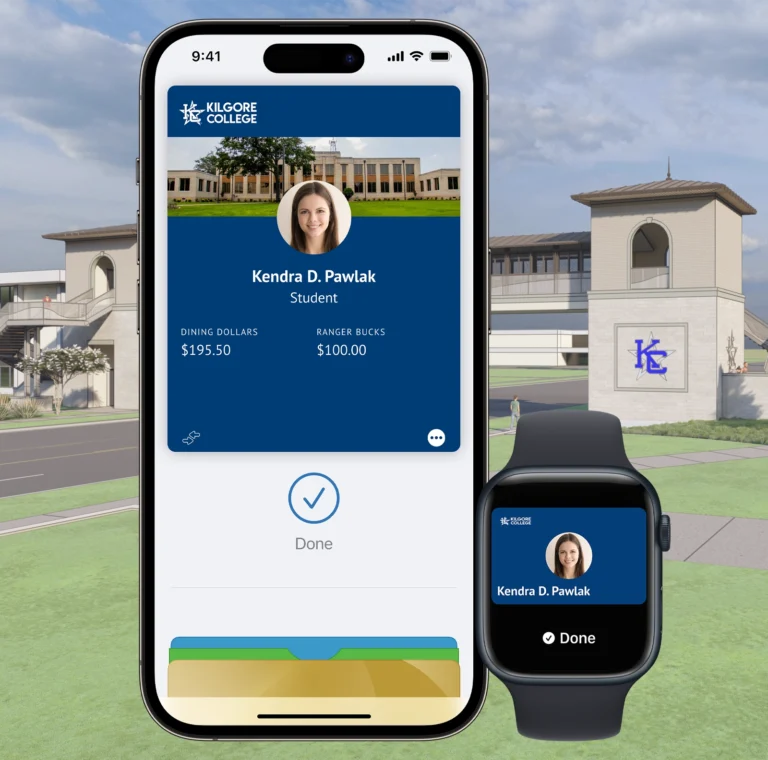

Name information on the Mobile Credential comes to us from the college’s core business systems and needs to be updated there. Students should contact the Registrar’s Office. Faculty and staff should contact their HR representative to request updates. Once changes are completed, the updates will sync to the Mobile Credential on your phone within 48 hours.
A negative balance can occur if you make a transaction when a retail device is offline. When the device comes back online and the transaction is posted, you will see a negative balance if there are not enough funds in your account to cover the transaction.
Return to the location of the sale and ask the store to issue a credit card refund, then process the transaction against your KC Mobile Credential.
As with your physical KC Mobile Credential, your Mobile ID will become inactive when you no longer meet eligibility requirements. If you transfer to another participating program or department at Kilgore College, your credential will stay active and update accordingly.
Contact the KC Mobile Credential Office at IDCARDS@Kilgore.edu or call (903) 988-7522.
Instructions can be found at www.kilgore.edu or call (903) 988-7522.
Instructions can be found here: https://www.kilgore.edu/admissions/activate-your-kilgore-college-account/
We recommend you retain your physical KC Mobile Credential in a secure location as a back-up should you lose a device.
Yes, your physical Student Badge will continue to function after you have added your Mobile Credential to your device. Remember, the Mobile ID is a privilege and benefit of being part of the Kilgore College community. Anyone found to be misusing their physical card or Mobile ID will be subject to the applicable Code of Conduct or HR policies regarding fraud and/or misconduct.
Yes, you will need to install the updated version of the Transact eAccounts mobile app.
On your device, visit the App Store or Google Play Store and search Transact eAccounts. The store will prompt you to install any required updates.
Confirm your device is not in Airplane Mode or experiencing any other service interruption. Updates cannot be made when there is no connecting service to sync data between Transact eAccounts and your device. The Transact eAccounts app will display the most current information.
To reactivate a found device that was suspended, perform the following steps:
In the Transact eAccounts App:
In the Transact eAccounts Web Version:
You will receive a confirmation email. Only the selected card will be reactivated.